
Looking to convert your PDF to a digital magazine? You’ll need the right strategies and platform to make it happen.
Your readers have already made the switch. According to Pew Research Center, 88% of U.S. adults get news from a smartphone, computer, or tablet at least sometimes. Only 6% say they often get news from printed newspapers or magazines.
Keeping those readers is getting harder, too. The Reuters Institute Digital News Report 2026 found the share of people paying for online news stuck at 17% across 20 countries. As a result, publishers are focusing more on retaining the subscribers they already have. A digital edition that’s a pleasure to read is one of the best ways to do that.
If you publish a small niche magazine, you might be looking for a simple conversion tool that will allow you to embed mobile responsive content in your website. Or, if you’re part of a larger publishing company, you might want to integrate digital magazine creation with other services like subscriber delivery, back issue access, and subscription order pages.
In this article, we cover the top benefits of converting PDFs into digital magazines, the steps to make it happen, and how long the process really takes. We also share the top tools for every business type and the best ways to get your finished edition to subscribers.
Why you should turn your PDF file into a digital magazine
Mobile magazines come in many different versions, file types, and formats. And not all of them are great for readers.
PDFs are notoriously hard to read. On a mobile device, columns and sections are too small. On a computer, the reading experience is a little easier but still feels off. PDF layouts designed for print don’t translate well in the digital world.
Fortunately, you can fix these issues. Here are the top benefits of converting those PDF files:
- Mobile responsiveness: You can deliver a magazine that is mobile responsive. It will be easy to read on phones, tablets, laptops, and desktop computers.
- No need to pinch and zoom: Your readers will not have to pinch and zoom around the page to read the text. Instead, the font will be appropriately sized automatically.
- Simple layout and alignment: A mobile magazine offers a simpler layout than a PDF designed for print. Everything will flow in a seamless, sensible way, and users won’t have to guess what to read next.
- Allows for swiping and scrolling: A great mobile magazine allows users to rely on touchscreen methods that feel native to their device. You can scroll to keep reading an article or swipe to turn the page to the next article.
- Best user experience: Overall, the entire reading experience is much improved with a digital magazine compared to a PDF. The magazine viewer you choose should put the reading experience above all else. (A PDF is at the mercy of the designer, who’s probably designing for print.)
The difference shows up in the numbers. After moving away from a PDF-only edition, Local Life Media Group saw 13,000 views of its eMagazines digital edition in one week, with an average engagement time of eight minutes.
Now that we’ve covered why it’s so important to avoid sharing PDF magazines with readers, let’s dive into the step-by-step process for magazine conversion.
How to convert your PDF into a digital magazine in 7 steps
Here’s how to create a mobile magazine that readers will love.
You’ll need interactive magazine software like eMagazines to follow these steps.
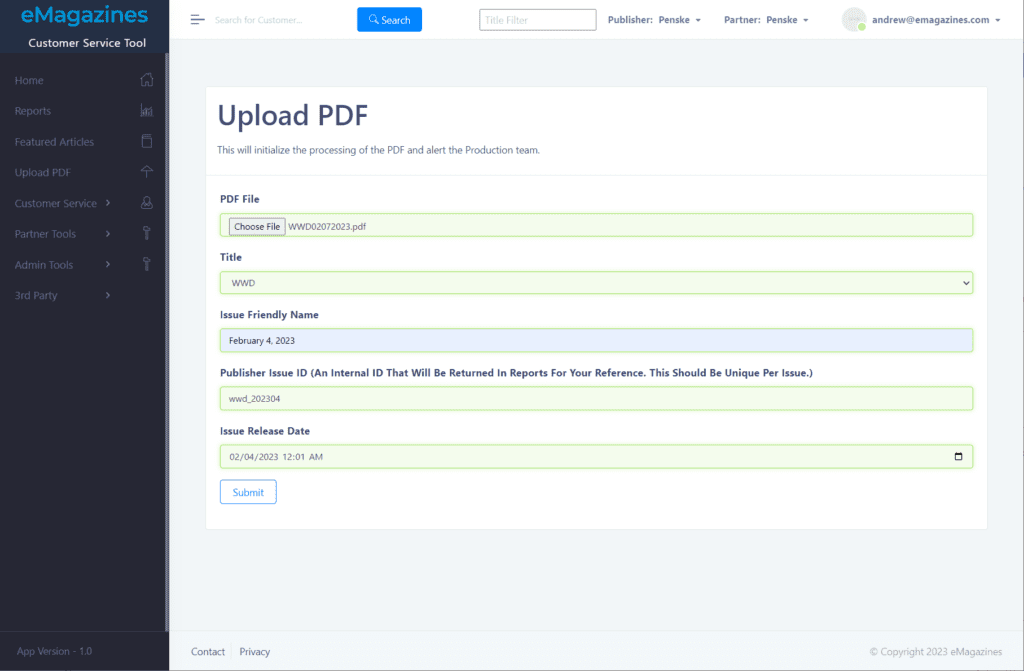
Step 1. Upload your PDF file to the converter
The first step is to upload the PDF file into the platform. At eMagazines, we work with publishers in a hands-on way, and we provide digital magazine production and delivery services for the majority of our clients. However, some clients prefer to handle the process themselves.
Step 2. Make sure the style matches your brand
After you’ve uploaded the PDF, the digital magazine content should display as lifelike as possible. It will pull articles and columns into a single-column view so that each piece is easy to read.
You should scroll through the article content and check that all of the styling matches your brand:
- Byline font
- Headline font
- Body copy font
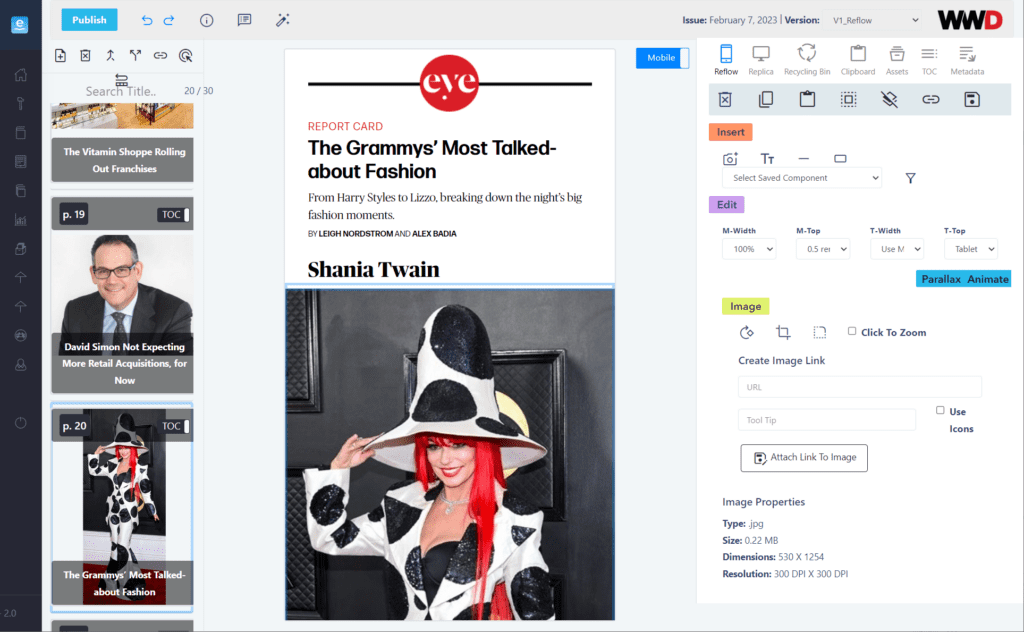
You should also take a look at the content of the articles and pictures to make sure everything has been imported.
Step 3. Create filters to easily fix repetitive issues
The next step is to create quick rules to address any issues. For example, the magazine conversion software has automatically pulled an image credit for every photo. As you can see in the picture below, the image caption says “P.L.N. photograph by Tonya Matyu.” If you don’t want these image credits to be displayed in your digital magazine, you could delete the text one by one. Or, you can set up a filter to handle this automatically.
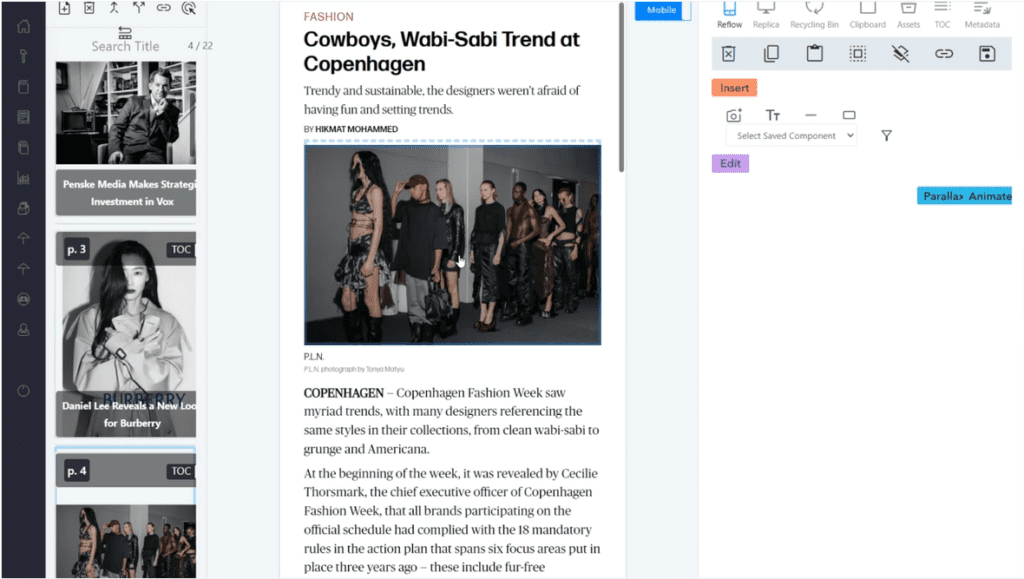
Take a look at your digital magazine and see if there is any content or details that you don’t want to display. You can remove it manually or set up rules for a faster processing time.
Step 4. Double-check the table of contents
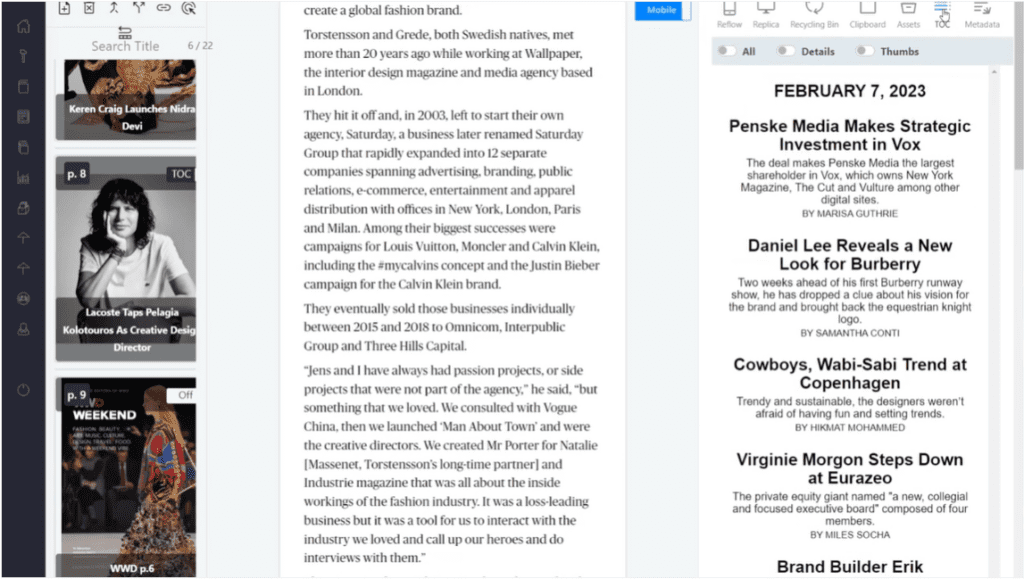
Next, click on the TOC icon to view the Table of Contents. Check that the date, titles, descriptions, and bylines for all articles have been pulled in correctly. You can also click on each title in the TOC to be taken to that article to ensure each link is working properly. This TOC will be available to readers at all times, so they can orient themselves within the magazine and click through to articles they’re interested in, instead of having to swipe their way there.
Step 5. Add deep links to your cover page
Before you publish your digital magazine, you should also add deep links to your cover page. These links allow readers to click on a cover blurb and be taken to the corresponding article. All you need to do is click on the link icon to generate a link for any article featured on the cover page.
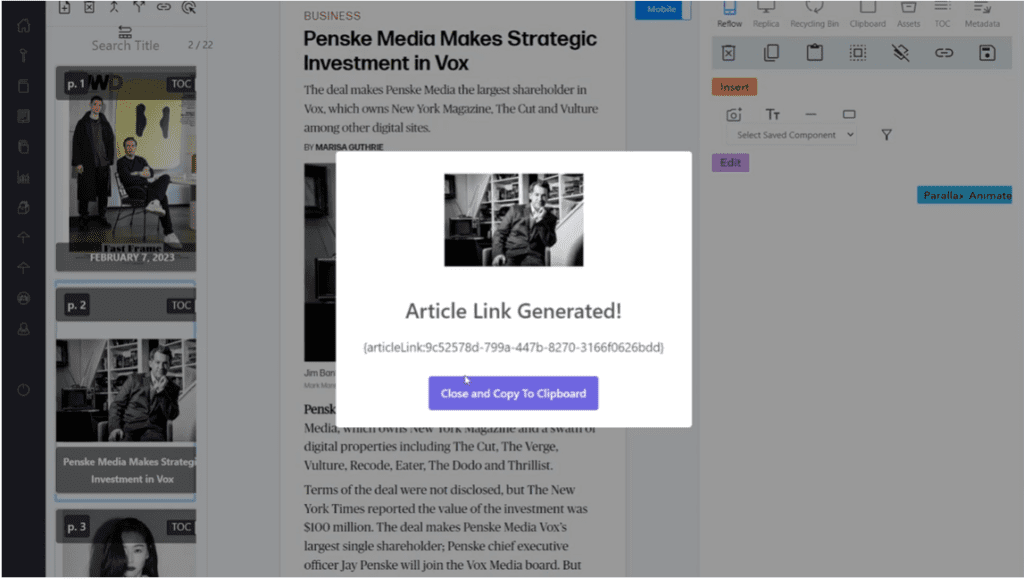
Next, head over to your cover page and draw a rectangle around the space where you want to hyperlink that article. Paste the link there, et voilà, you’ve created a deep link from your cover page. Repeat this process for all of your cover blurbs.
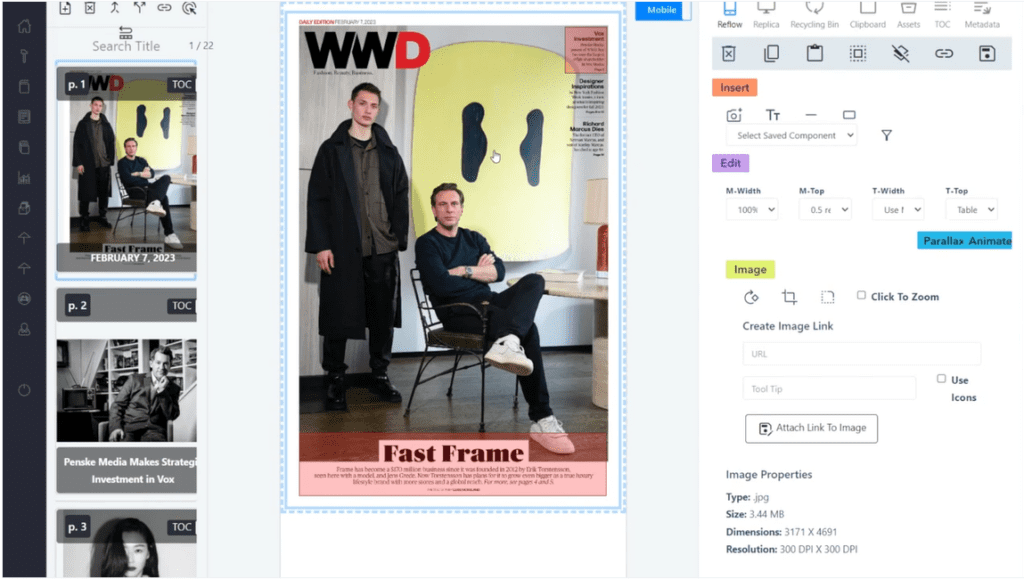
Step 6. Add AI-generated audio to each article (if desired)
Article audio is a great added feature of digital magazines. Subscribers can decide to listen to the magazine instead of reading it. This improves both convenience and accessibility. If you want to add this capability to your magazine edition, head over to the article audio dashboard and click the “Submit Audio” button.
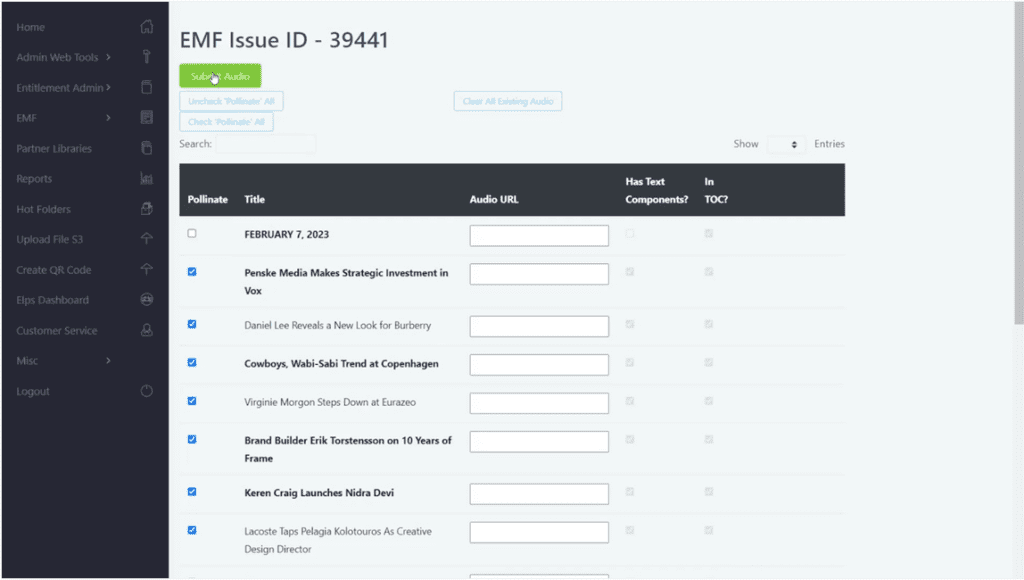
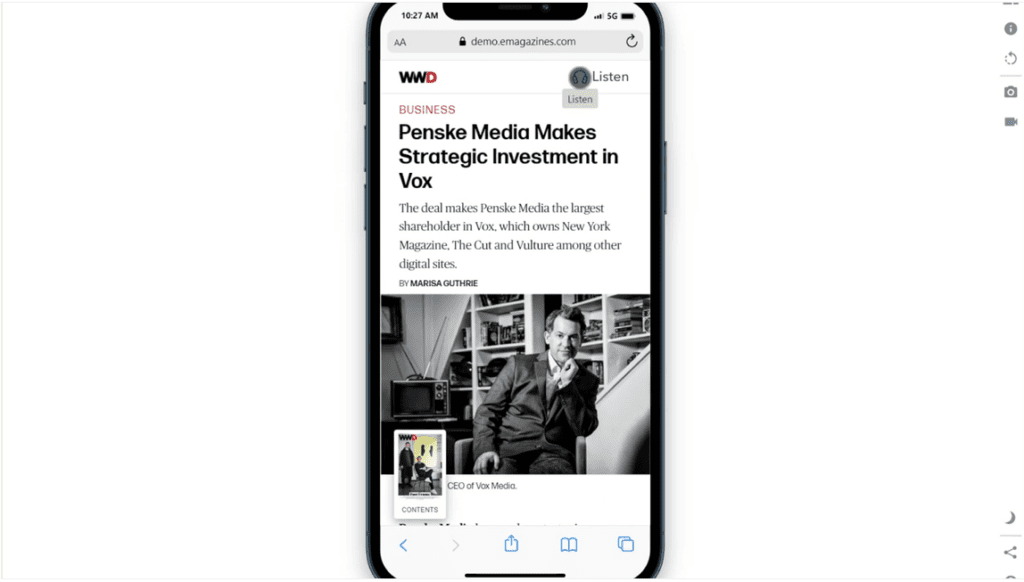
Automatically, you’ll have high-quality, AI-generated audio content for each article. In the settings, you can choose the voice that best matches your brand. The “Listen” button will appear at the top of every article, clearly showing readers that they have the option to listen instead of read.
Step 7. Preview your digital magazine in mobile view
The final step is to preview your digital magazine in mobile view. So far, as you’ve been working inside of the platform, you’ve seen what it will look like on a desktop computer. Now it’s time to make sure that the digital magazine will look great on mobile devices.
Use your mouse to scroll and swipe through the articles, checking for any style or content errors.
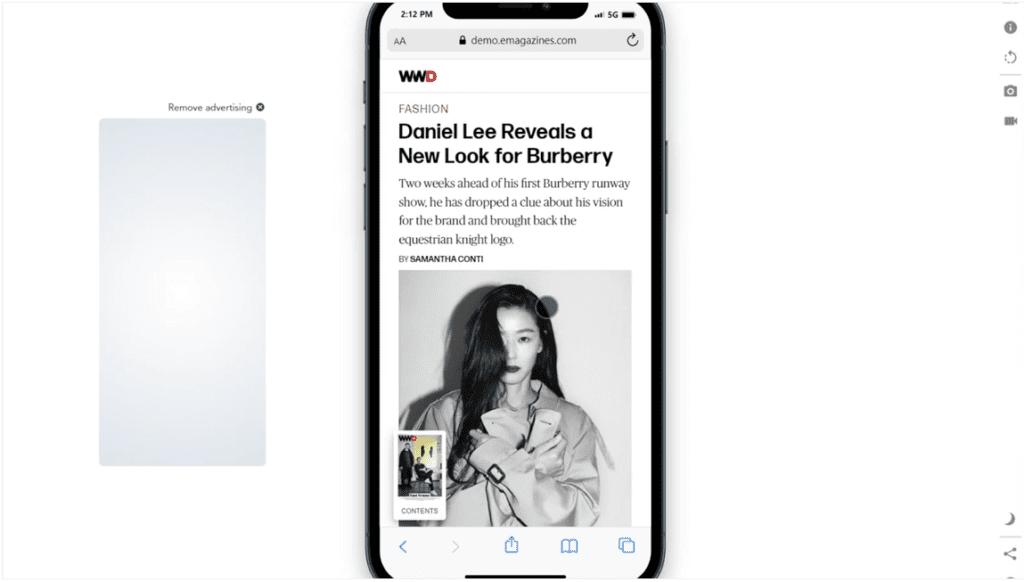
If you’ve chosen to add audio to your articles, you should listen to a few of the files to make sure they sound great. You don’t need to listen to every track, but you might want to click on each “Listen” button to check that the audio plays and that the estimated listening time matches the length of the article.
You can then deliver the digital magazine to your readers via email notifications and your mobile app. If you’re working with eMagazines, we’ll manage every aspect of production and delivery. We can also help you create high-converting landing pages to drive more subscribers. We cover how to choose the right delivery channel further down.
How long PDF-to-digital conversion actually takes
The short answer is days, not weeks. The reflow itself is automated, so your timeline mostly depends on one question: who does the review and cleanup?
Self-serve: your team runs the conversion
When your team works inside the platform, most of the time goes into review. That means checking brand styles, setting up filters for repeat issues, testing the table of contents, adding cover links, and previewing on mobile.
Your first issue takes the longest. You’re setting up fonts, styles, and filters for the first time. After that, those settings carry over, so each new issue moves faster. In my experience, teams that keep a consistent print template get the quickest turnarounds.
Done-for-you: our team runs the conversion
Most of our clients hand production to us. You send the print-ready PDF, and our production team handles the reflow, quality checks, article audio, and delivery setup. A finished, subscriber-ready edition typically takes just a few days.
Your team’s job shrinks to a final review and approval. For publishers releasing several titles, or monthly issues on tight deadlines, that time savings adds up quickly.
| Self-serve | Done-for-you | |
|---|---|---|
| Who handles reflow and QA | Your team | eMagazines production team |
| Your team’s time per issue | Review of every article, plus fixes | Final review and approval |
| Typical turnaround | Faster after the first issue, as settings carry over | Just a few days from PDF to delivery |
| Best for | Teams with in-house production staff | Publishers who want production off their plate |
How to speed things up either way
- Send the final file. Converting proofs and then reconverting a corrected PDF doubles the review work.
- Keep your print styles consistent. Consistent headline, byline, and caption styles let filters do more of the cleanup.
- Decide on extras up front. Know whether you want article audio and cover deep links before production starts.
- Name one approver. A single reviewer keeps feedback from bouncing between editors.
Top tools for converting PDFs to online magazines
To turn your PDF file into a mobile-optimized magazine, you’ll need the right software. There are a lot of great solutions for PDF to mobile reflow. Below, we’ve chosen the best options for three different user categories:
- Publishers
- Small creators
- Enterprise communications
1. eMagazines: Best for publishers
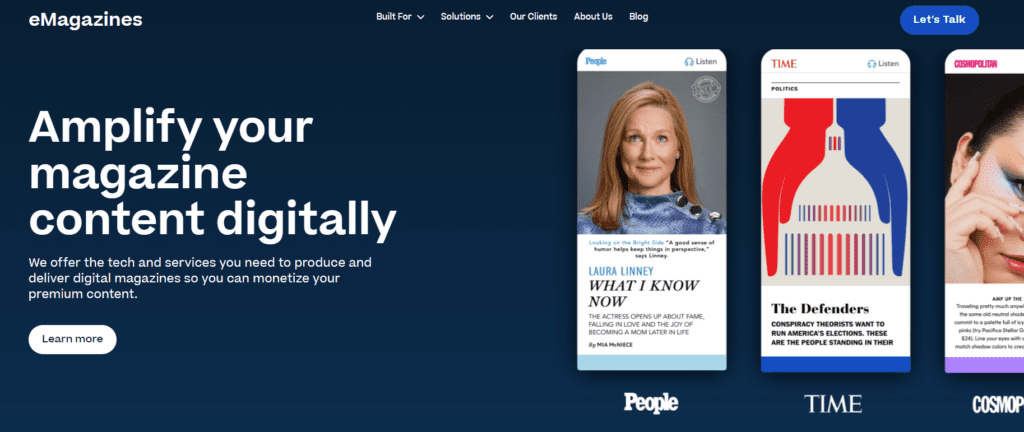
eMagazines is a great PDF to mobile reflow solution for publishers because it provides a top-notch reading experience. People, TIME, Cosmopolitan, Bloomberg Businessweek, Rolling Stone, and countless others all create digital editions using eMagazines. We offer both software and custom services to help publishers create easy-to-read mobile editions and deliver them to subscribers via email, mobile apps, and Apple News+. We also offer revenue-driving services, including back issue sales, special issue sales, and subscription order landing pages.
While we do specialize in working with large-scale publishers, we also have more affordable options for niche and regional media companies.
Learn more about managing digital production and fulfillment with eMagazines.
2. Flipsnack: Best for small creators
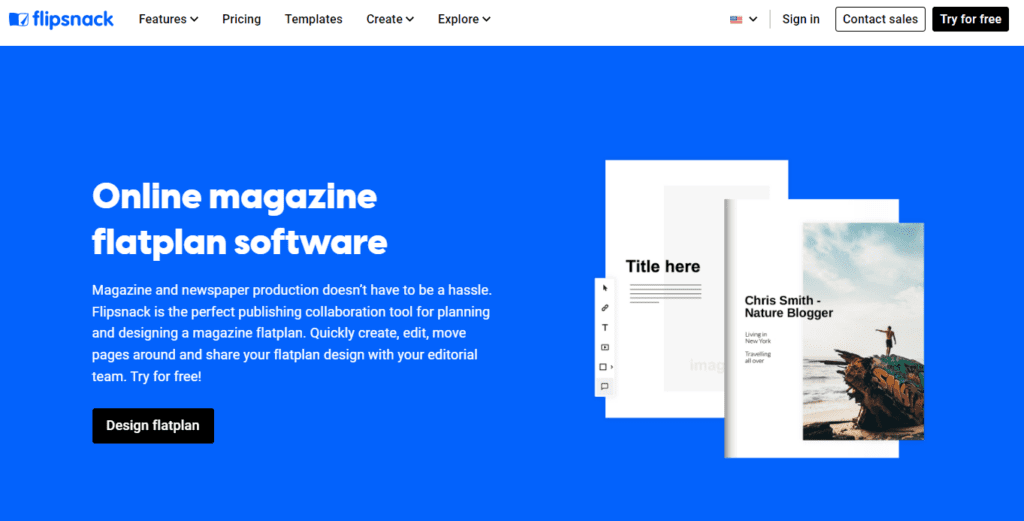
Flipsnack is a good, simple solution for small businesses and digital creators. A free plan covers up to 5 flipbooks of 15 pages each, with Flipsnack branding. Paid plans start at $16 per month, billed annually. Use Flipsnack to turn your PDF into a flipbook that can be shared via a link or embedded into your website. Password-protected sharing starts on the Pro plan, so you can limit access to subscribers or offer the content for free. Flipsnack is also a good solution for companies looking to create digital brochures and catalogs.
3. Foleon: Best for enterprise communications
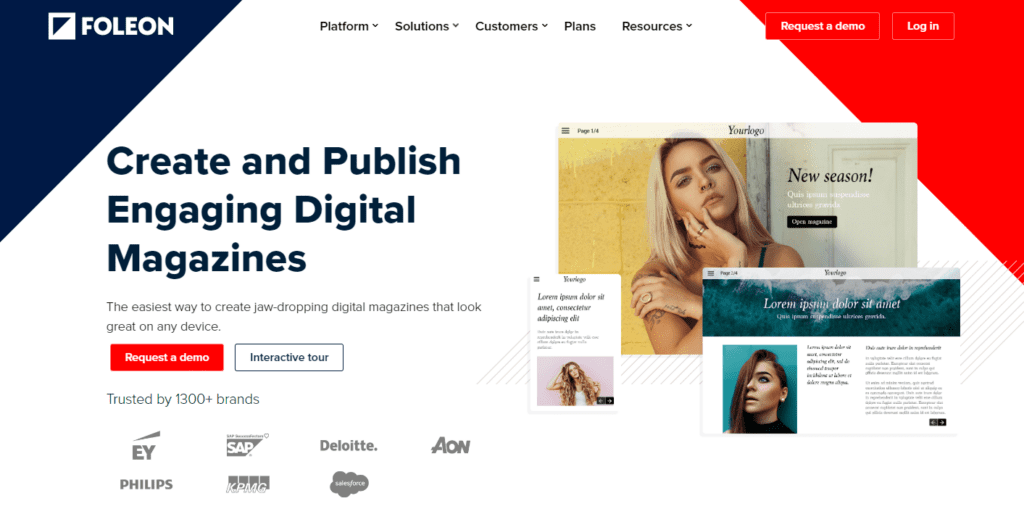
Foleon is best equipped to meet the needs of enterprises. Marketers, internal communications teams, HR, and other departments can use Foleon to convert PDF designs into digital magazines and then share them with their audience. The top use cases include content marketing, sales enablement, account-based marketing, interactive newsletters, and corporate brochures. In addition to an easy-to-use content editor and collaboration suite, you’ll also get automated marketing tools and analytics to help you improve the success of various campaigns. Foleon doesn’t publish its pricing, so you’ll need to request a custom quote. Because multiple departments can use the platform, you’re likely to get plenty of value from it.
PDF to mobile reflow is a common practice, but you need to choose a platform that meets all of your needs while putting the reader experience first.
Getting your converted magazine to subscribers
A beautiful digital edition only pays off if subscribers can open it in one tap. There are three main delivery channels. Most of the publishers we work with use email as the foundation and add the others when they fit.
| Channel | Best for | What subscribers need |
|---|---|---|
| Email smart links | Nearly every publisher, especially for instant access | An email inbox and a web browser |
| Native app | Publishers with app revenue or a strong app store presence | The app downloaded from the App Store or Google Play |
| Apple News+ | Magazines already accepted into Apple News+ | An Apple News+ subscription |
Email smart links: the default for most publishers
With email delivery, subscribers get a notification whenever a new issue is ready. One click opens the full edition in their browser. There’s no app to download and no password to remember.
Your content stays secure, too. Each link limits access based on the number of devices you allow per subscriber. Subscribers can also find every issue they’re entitled to in their subscriber library, including back issues.
When to use it: Almost always. Email is the fastest way to give new subscribers something to read on day one. For example, Hearst UK uses eMagazines so new print subscribers can start reading digital issues within seconds, instead of waiting for print to arrive.
Native apps: when an app store presence matters
A branded iOS and Android app puts your magazine on subscribers’ home screens. Apps can include digital editions, website articles, push notifications for new issues, and in-app purchases for single issues and subscriptions. We deliver the same mobile-optimized edition into the app, so the style stays consistent across every channel.
When to use it: If you already earn app revenue, want push notifications, or want a presence in the app stores. Otherwise, an app isn’t required. When Golf Magazine moved its app to eMagazines, its iOS rating rose to 4.8, the highest it had ever been.
Apple News+: when you’ve been accepted
Apple News+ requires articles in Apple’s article JSON format. As an Apple News preferred provider, eMagazines converts print-ready PDFs into that format. Because our reader uses an almost identical style, one conversion can serve both Apple News+ and your own digital edition.
When to use it: Only if your magazine has already been accepted into Apple’s paid subscription service. It’s a great way to reach new readers. Keep in mind that your title appears alongside many others in the app, so pair it with a channel you control, like email.
Common mistakes to avoid when converting PDFs to digital magazines
Mistake #1: embedding static PDFs without reflow
Simply uploading and embedding a static PDF into your website creates a frustrating experience for mobile users. Text appears small, and readers must constantly pinch and zoom to navigate content. Instead, use digital magazine software that reflows your PDF into a mobile-optimized, single-column layout.
Mistake #2: ignoring brand consistency
If your fonts, colors, and layout vary from your print edition or overall brand identity, it can confuse readers and diminish trust. During the conversion process, ensure your magazine software supports full styling control so you can match your brand’s look and feel.
Mistake #3: skipping interactive enhancements
Failing to add features like deep links, clickable TOCs, or article audio can limit reader engagement. These elements make your digital edition more navigable and enjoyable. Embrace the interactive opportunities of digital to enhance the user experience.
Mistake #4: not testing across devices
Just because your magazine looks good on a desktop doesn’t mean it works well on a phone or tablet. Always preview your content on multiple devices to ensure text is readable, links function properly, and media plays smoothly.
Mistake #5: neglecting accessibility features
Overlooking accessibility means excluding a portion of your audience. Consider adding AI-generated audio and ensuring your layout supports screen readers. Making your digital magazine more inclusive not only broadens your reach but can also improve SEO and compliance.
Avoiding these common mistakes ensures your digital magazine delivers a seamless, engaging experience that keeps readers coming back.
Frequently asked questions
Can I convert a PDF to a digital magazine for free?
Yes, with limits. Flipsnack’s free plan lets you publish up to 5 flipbooks of 15 pages each, with Flipsnack branding on links and embeds. Free tools typically create flipbooks, which display your print pages as they are. For a reflowed, mobile-friendly edition you can sell to subscribers, you’ll need a paid platform.
What’s the difference between a flipbook and a reflowed digital magazine?
A flipbook shows your print pages on screen with a page-turn effect. On a phone, readers still have to pinch and zoom. A reflowed digital magazine rebuilds each article as a single column that fits any screen, with readable text, a clickable table of contents, and optional audio.
How long does it take to convert a PDF into a digital magazine?
With a done-for-you service like eMagazines, a finished, subscriber-ready edition typically takes just a few days. If your team runs the conversion itself, the first issue takes the longest because you’re setting up styles and filters. Later issues move faster.
Do subscribers need an app or password to read my digital magazine?
No. With email smart links, subscribers click a link in their inbox and the issue opens in their browser. Links limit access by the number of devices you allow, so your content stays secure without passwords.
Will my digital edition match my print branding?
It should. eMagazines pulls the fonts and colors from your PDF for headlines, bylines, and body copy. You can then adjust any styles globally so the digital edition matches your brand.
Can I publish my converted magazine on Apple News+?
Yes, if your magazine has already been accepted into Apple News+. eMagazines can convert your print-ready PDF into Apple’s required article format and manage production for you.
Ready to create a mobile-friendly, on-brand digital edition? Explore how eMagazines can help you get started today.